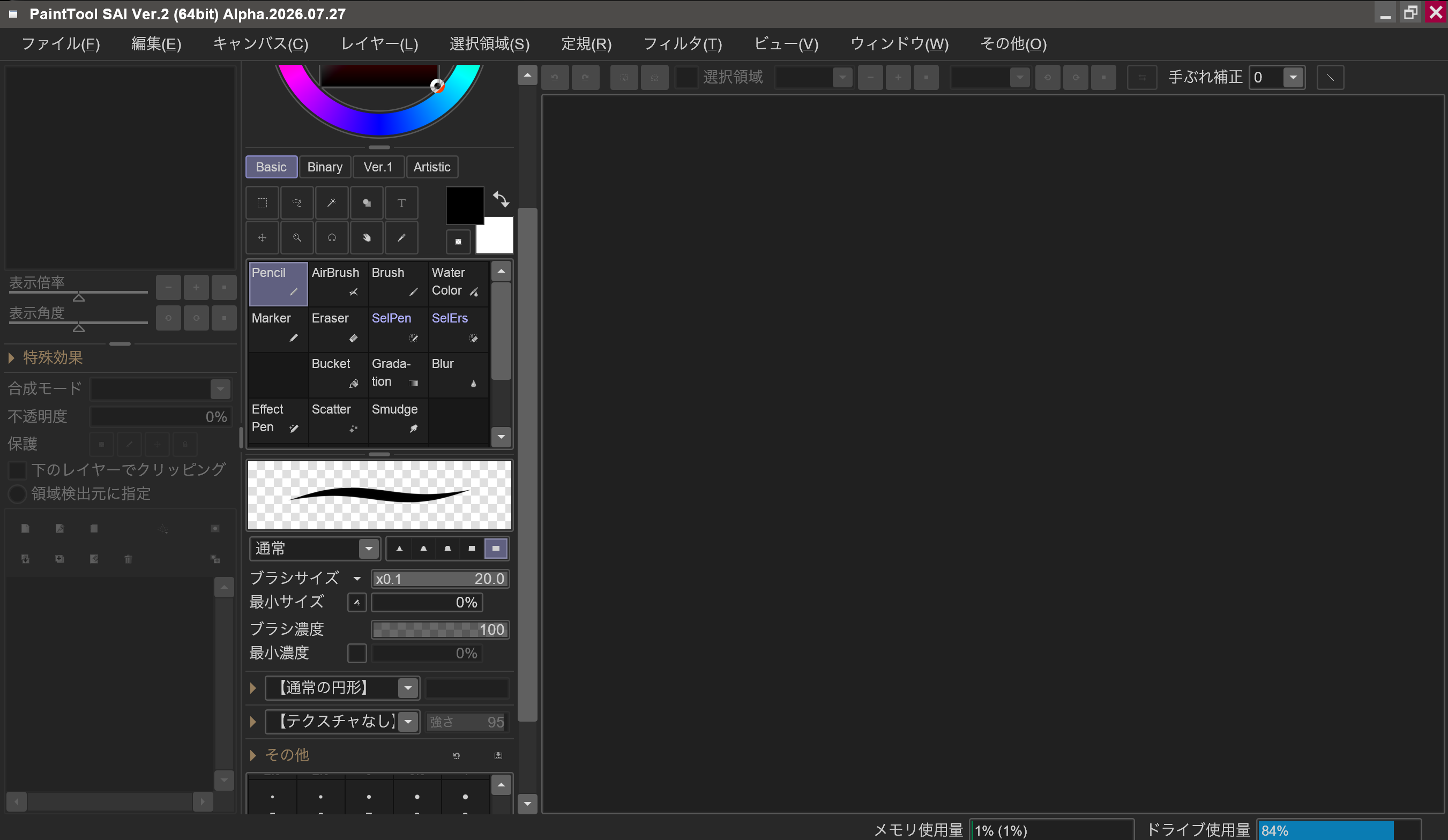
PaintTool SAI Ver.2 — also written Paint Tool SAI, and usually just called SAI 2 — runs on macOS under Wine. It launches, it draws, it looks right — and every stroke comes out the same width, because the pressure never arrives.
The reason is narrower than it sounds. SAI asks Windows for pen data through WinTab, an API from 1991 that expects a tablet driver to be present. Under Wine there is no such driver: your Wacom talks to macOS, macOS knows the pressure perfectly well, and nothing carries it across the boundary. SAI isn’t broken and neither is your tablet. There is simply a missing translator.
This project is that translator.
Where to go
- Install — from nothing to drawing. Roughly fifteen minutes, most of it waiting on downloads.
- Troubleshooting — organised by how to tell which problem you have, because the symptoms overlap badly.
- How it works — the architecture, and the file-layout question that trips up nearly everyone.
- Engineering notes — decisions, mistakes, and the reasoning behind both.
New in 0.3.12: Chinese, Japanese and Korean text instead of boxes, and SAI’s menus in Japanese if you like. Since 0.3.11: pen feel presets and your own profiles. Since 0.3.9: sharp text on Retina screens, without the lag. Since 0.3.0: canvas timelapse that spans sessions, one video per drawing.
What you need
| A Mac running macOS 12 or later | Native on Apple Silicon (M1, M2, M3 and later) and on Intel — the app ships as a universal binary, so there is nothing to choose at download time |
| A tablet, with its macOS driver installed | tested with a Wacom Intuos; any tablet macOS itself recognises should work, but Huion, XP-Pen and others are untested |
| Wine Staging | the app installs it for you, with a progress bar: 11.16 with our fix for sharp text, until a Wine with the fix built in is out |
| PaintTool SAI Ver.2 | the free technical preview |
| A SAI licence | only to save. You can draw, and test pressure, without one |
That last row matters more than it looks. You can verify this whole project works before spending anything.
What this is not
It does not include SAI, and it cannot supply, generate or activate a licence. PaintTool SAI is commercial software by SYSTEMAX; this project has no affiliation with them and does exactly one thing with licences — copies a certificate you already own into the folder SAI reads, because that folder is not where anyone would guess.
It also does not:
- change SAI. Nothing patches
sai2.exe; SAI loads the bridge through its own WinTab support. - phone home. No accounts, no analytics. The only network use is GitHub: checking for new versions of the app and of Wine, and downloading them.
- forward tilt, rotation or the eraser. Pressure only.
- run on Windows or Linux. For a timelapse there, use art-timelapse.
The full list, including the limits that belong to SAI or Wine, is in the README.
The licence in this repository (GNU GPL version 3, with the attribution terms in NOTICE) covers the bridge code. Nothing else.
Why not just run a virtual machine?
That is what most people have done, and it works. It is also heavy for what you get.
| Virtual machine | This project | |
|---|---|---|
| Cost | a Windows licence, plus the VM app if it’s a paid one | free, and open source |
| Windows licence | required | none |
| Disk | tens of gigabytes | ~300 MB (Wine) + SAI itself, a few MB |
| Memory | a whole second OS, running alongside macOS | a translation layer, only while SAI is open |
| Your tablet | forwarded over virtual USB into the guest | stays on macOS, using the driver you already installed |
| Pen pressure | depends on USB passthrough and the guest’s tablet driver | read natively on macOS and handed to SAI |
| Starting SAI | boot the VM, wait, then launch SAI | double-click |
| Timelapse of your drawing | screen-record the VM window, panels, cursor and all | built in — records the canvas itself, and joins up the evenings you spend on one picture |
To be straight about that first row: SAI itself is commercial software either way. You need a licence from SYSTEMAX to save your work, whichever route you take — and you can draw, and test that pressure works, before buying one. What this project costs you is nothing; what it saves you is the Windows licence and the virtual machine around it.
The tablet row is the one that decides it. In a VM your pen has to survive being forwarded through virtual USB and picked up again by a Windows driver inside the guest — which is precisely where pressure tends to be lost, or arrive late enough to feel wrong. Latency you can tolerate in a spreadsheet is intolerable in a brush stroke.
Wine takes the opposite approach: there is no guest operating system. SAI’s Windows calls are translated as they happen, and the pen never leaves macOS — it is read by the driver you already have, and delivered straight into SAI. Nothing is emulated, so nothing is slowed down.
The recording row is a smaller thing, but it is the kind of smaller thing that decides an afternoon. Screen-recording a VM window gives you a video of the application — panels, cursor, and the camera lurching every time you zoom or pan. This project reads SAI’s canvas out of memory instead, so the video is the artwork alone. See Canvas timelapse below.
The honest trade-off: a VM runs real Windows, so if something misbehaves it is SAI’s fault, not the translation layer’s. Here, some rough edges belong to Wine — the known issues are explicit about which. In exchange you get no Windows licence, a fraction of the disk and memory, and a pen that behaves like a pen.
Pen feel
How hard you have to press is a matter of taste, and of how the day is going for your hand. The Pen tab has presets named by what you are doing rather than by stiffness:
| Preset | For |
|---|---|
| Normal | exactly what the tablet reports |
| Light hand | full width without pressing hard, easy on the hand |
| Inking | ignores the lightest touch, for clean line starts |
| Painting | even strokes for soft blending |
| Heavy hand | control for people who press hard |
Each is a starting point. Three sliders adjust it: the curve (lower is softer, 0 means no pressure at all), Ignore light touch, and Full width at, for full width without pressing all the way. Save the result as one of up to three profiles of your own. Everything applies instantly, without restarting SAI, and it works on top of SAI’s own brush settings rather than replacing them.
Sharp text on Retina screens
Wine draws Windows programs at half the resolution of a Retina screen, and macOS stretches the picture up, so SAI looks soft: text, panels and the canvas alike. Advanced › Display › Sharp text on Retina screens has Wine draw SAI at the screen’s real resolution instead.
On its own that made drawing lag, because Wine then hands macOS four times as many pixels for every brush dab. Wine has fixed this upstream, and until a Wine release includes the fix, the app installs Wine Staging 11.16 with that exact change added, so sharp text costs nothing. In SAI, set Window › Scaling of User Interface to 200% with sharp text and 100% without, then restart SAI.
A few of SAI’s small panel icons stay small at 200%. They are fixed-size pictures inside SAI, and only its maker can change them.
Chinese, Japanese and Korean text
SAI asks for Windows fonts that a Mac does not have, so these characters used to show as boxes. Advanced › Display › Language points Wine at the fonts that come with your Mac instead: English or 日本語 for SAI’s menus (the only two languages SAI’s menus come in). With either, Chinese, Japanese and Korean text in layer names, file names and dialogs shows, in the order of your Mac’s languages. Fonts you installed with Font Book can be chosen too, and the path of the font in use is shown. Nothing is copied or downloaded. SAI’s Text tool is not affected: it uses its own font engine, which does not support these fonts yet.
Canvas timelapse
Requires v0.3.0 or later for drawings that span sessions. macOS only — on Windows or Linux use art-timelapse, which is where this idea came from.

Fifteen strokes played back — the canvas alone, nothing else in frame.
Recording is built in and on by default. It takes a frame each time the pen rests, so a long session becomes a couple of minutes of video. Record every stroke separately takes one right after every stroke instead, for more detail, at the cost of drawing feeling a little slower.
The difference from screen recording is what it reads. Rather than photographing the window, it reads SAI’s canvas directly out of memory — so the video shows the flat artwork with no panels, no cursor, and no camera movement when you zoom, pan or rotate while working. Because what is recorded is the composited canvas, layer opacity and blend modes appear exactly as you see them.
Just draw. Closing SAI makes the video by itself; there is a Make video now… button on the
Recording tab if you want one early. Videos land in ~/Movies/SAI Timelapses, one folder per drawing.
A drawing over several evenings is one video
Reopen a picture tomorrow and tonight’s recording is added to the same video rather than becoming an unrelated clip named after a date.
The hard part is knowing it is the same picture. Inside one session SAI identifies a canvas by its
address in memory, which is exact and completely useless once SAI quits. Titles are no better:
rename a canvas and it looks like a new drawing, and every unsaved document in SAI is called
NewCanvas1, so two brand-new pictures are indistinguishable on the day it matters most.
What survives all of that is what the drawing looks like — you reopened it because it is the picture you left. So a small fingerprint of the canvas is compared against where each drawing was last left. Rename it, move the file, Save As: it still knows.
When the evidence is strong it files the session automatically. When it is merely plausible — you worked on the picture somewhere else in between, say — it keeps the session as its own drawing and asks, showing both stills side by side, because a wrong merge welds two drawings into one video and a wrong split only leaves two rows in a list. Saying no is remembered, and ignoring the question is fine: the video exists either way.
The Videos tab
Your drawings, with a still from each — hover one to play it in place. From there you can play, export, rebuild, rename, and take a session out of a drawing it was filed into wrongly. Videos recorded before this all existed are listed alongside.
A few things worth knowing before you rely on it:
- Several open canvases are recorded separately — one video each, tracked by identity rather than by name, so renaming a canvas mid-session relabels its video instead of splitting it.
- Each session is kept as its own file and the combined video is rebuilt from those, so nothing already recorded is ever rewritten. A failure can cost the session that failed, never the evenings before it.
- Length is chosen when you export, not while recording. Your drawing keeps its full-length video and a capped copy is a separate file, so asking for 30 seconds twice never compounds.
- Undo is captured at your next stroke, not the moment you press it.
- Frames are large while a session is in progress. Past 2 GB every second frame is dropped, which halves the size while still spanning the whole session rather than losing its beginning.
An honest word about scope
This is a compatibility shim between two systems that were never meant to meet, sitting on top of Wine, which is itself an enormous act of reverse engineering. Some problems here are ours and get fixed. Some belong to Wine’s macOS driver, or to SAI, and can only be worked around.
The known issues say which is which, including the ones still unsolved. That seemed more useful than pretending.