Most reports fall into one of these. Each entry says how to tell, not just what to do.
The pen draws, but every stroke is the same width
Pressure isn’t reaching SAI, or SAI is ignoring it.
- Read the “Pressure bridge” row on the Setup tab. It answers this on its own. With SAI
closed it checks the two things that decide whether SAI can get pressure at all: our
wintab32.dllin the Wine prefix, and the Wine setting that makes SAI load it instead of Wine’s own (without that setting the file is ignored and every stroke is flat). If it’s red, press Repair — it takes a second and touches nothing else. While SAI is running the same row reports from inside SAI: whether SAI asked for a tablet at all, whether pressure is arriving, and how many points SAI has actually drawn from the pen. - Test it outside SAI first. In the Pen tab press Test pen, then press the pen on the
tablet. Two bars move: the top one is what this app sends, the bottom one is what actually
arrives inside Wine, where SAI reads it. Between them they place the fault on their own, with
SAI closed:
- Neither moves — the problem is on the macOS side. See no pressure at all below.
- Top moves, the bottom stays flat — Wine is not loading our bridge, so SAI would get nothing. A line underneath says so and points at Repair on the Setup tab.
- Both move — the bridge works end to end, so the fault is inside SAI. Steps 3 and 4.
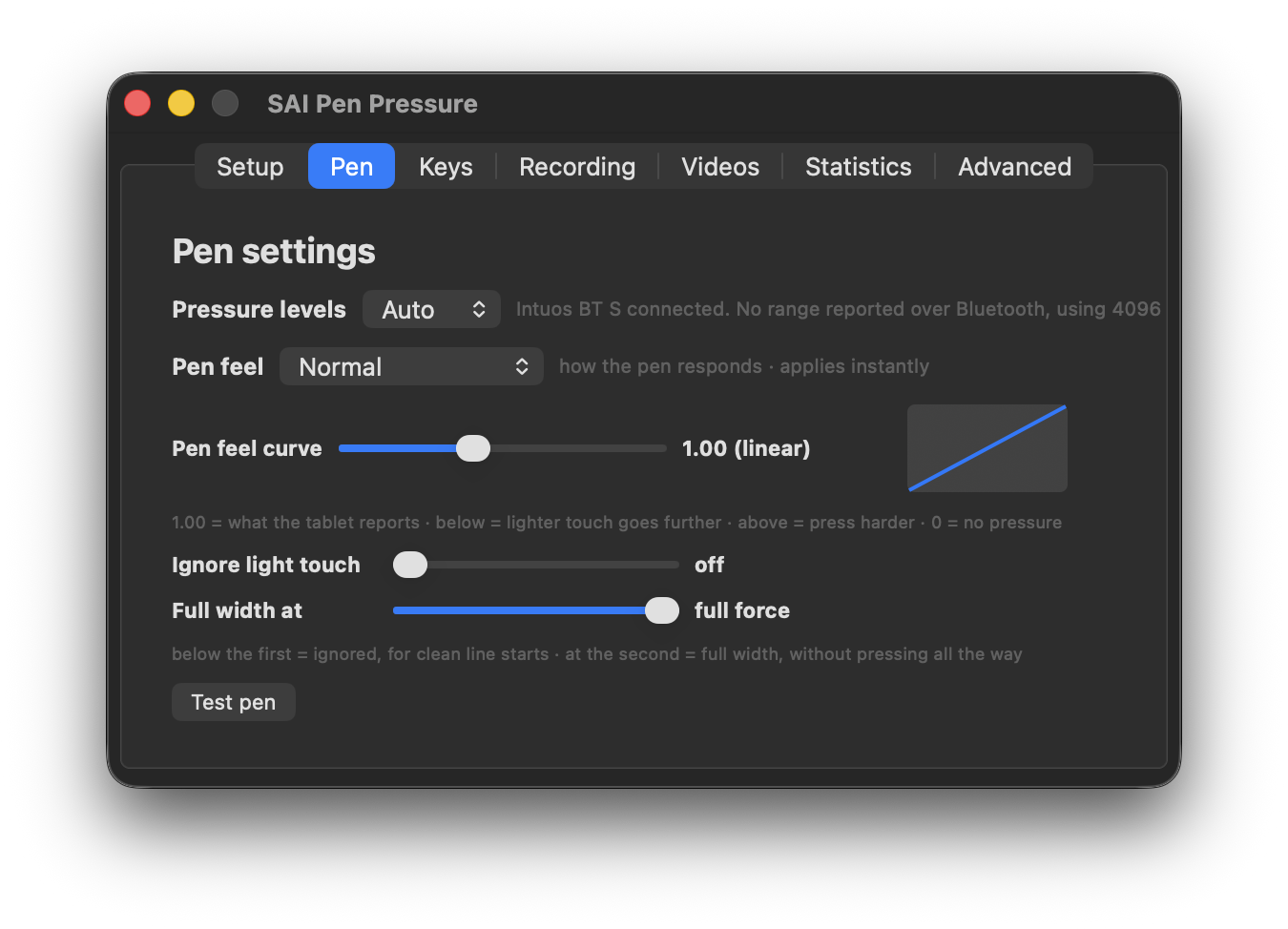
Both bars moving, as above, means pressure is reaching SAI’s side of the bridge.
- Check SAI’s tablet API. Others → Options → Pen Tablet → Use WinTab API, then quit SAI completely and relaunch. A rebuilt Wine prefix resets this.
- Check the brush. Test with the AirBrush tool: its stock settings show pressure most clearly, so a stroke that still comes out flat there is a real fault rather than a brush setting. On other brushes, look at Min Size in the tool panel: at 100% pressure cannot change stroke width — every stroke draws full width no matter how hard you press. Try ~10%.
No pressure at all — the bar never moves
Almost always the permission.
- System Settings → Privacy & Security → Input Monitoring must list SAI Pen Pressure, switched on.
- macOS will not prompt you for downloaded releases. You have to add it by hand — see Install.
- The grant is matched by path for unsigned apps: move the app after granting and you must grant again. Put it in /Applications first.
- macOS only applies a new grant on a fresh launch. Quit and reopen the app.
Bluetooth: the tablet is connected, and macOS ignores it anyway
I’ve seen this happen on a Mac with none of this installed, so it isn’t ours and nothing here can fix it: the pen never reaches macOS in the first place, so there is nothing for us to pass on. It still earns a place on this page, because it is part of drawing on a Mac with a Wacom — and because from the outside it looks exactly like a broken install.
How to tell. The tablet is paired and shown as connected, the Pen tab even names it (“Intuos BT S connected”), and still nothing happens: the cursor doesn’t move and Test pen stays flat. That line naming your tablet comes from asking macOS which devices exist, which says only that it is there, not that it is sending anything. Plug the USB cable in: if the pen works that way, this is what you have.
Fix: restart the Wacom driver. Both lines, in this order:
pkill -f "WacomTabletDriver|TabletDriver.app|WacomTouchDriver"
launchctl kickstart -k "gui/$(id -u)/com.wacom.wacomtablet"
The second one matters: on the Mac this was written from, the drivers did not come back on their own after the first, and the tablet was dead until they were kicked back up. Give it a few seconds, then try the pen again.
If it’s still silent: power the tablet off and on, toggle Bluetooth off and on, or use the USB cable, which sidesteps the whole thing.
Unrelated but often noticed at the same time: over Bluetooth the tablet doesn’t publish its pressure range, so the Pen tab says “No range reported over Bluetooth, using 4096”. That’s normal, not a fault — the number is remembered rather than measured.
SAI won’t save — “licence” errors
Your certificate is probably in the wrong folder for your build of SAI.
Where SAI reads the .slc changed between builds: older Ver.2 builds read it next to
sai2.exe, while the 2026-07-12 Technical Preview Major Renovated build reads it from a
settings folder. The wrong folder is indistinguishable from an invalid licence — SAI simply
refuses to save.
Use Install… on the SAI license row and it copies to both, so whichever build you run finds it. The row then reports which locations are covered.
Since v0.1.12, a .slc already sitting in your own SAI folder is picked up automatically —
noticed when you choose the folder, and again on every install or reinstall, then copied to both
locations and kept so a rebuild can restore it. Before that it was only copied verbatim, so it
landed wherever it happened to sit in your folder, which may not be where your build reads from.
The pen won’t draw at all
Upgrade — and check your version. This exact symptom has shipped twice, from two unrelated causes:
- v0.1.5 — fixed in v0.1.6
- v0.1.10 — fixed in v0.1.11
Both swallowed the click that starts every stroke. Pressure arrived perfectly the whole time, so every diagnostic looked healthy while nothing painted, and no amount of reinstalling helped — the bug was inside the bundled DLL, not your setup.
Two things make this hard to recognise, both worth knowing:
- A stroke that never starts also has no pressure, so it presents as “pen pressure stopped working” rather than “clicks are ignored”.
- It can look like a permissions problem, especially if it appears after a restart. In the v0.1.10 case the timing was pure coincidence — the bug had shipped days earlier and simply waited for the next launch.
If you are on v0.1.10, the giveaway in a WT_DEBUG=1 log is a line reading CLICK dedup: ate
msg=0x201 shortly after a pen-down, while the header of the same log says dedup=off.
Note that upgrading is enough: since v0.1.11 the bundled DLL is refreshed on every launch. Before that, installing a new version left the old DLL in place, so a DLL-side fix could reach you only if you happened to reinstall.
SAI goes inactive, or quick short strokes go missing
Update to 0.3.11. Up to 0.3.10, the Test pen button could leave a small stand-in for SAI running inside Wine after the test, even after the app quit. While it ran it held the connection the pen samples arrive on, so SAI fell back to a slower path that only keeps the newest sample and lost quick strokes. It also kept taking the foreground away from SAI, so SAI looked inactive. 0.3.11 stops any leftover before starting SAI and whenever the app quits, and SAI takes the pen connection back within a second.
How to tell, on any version, with the Test pen button not running:
ps -x -ww -o pid,etime,command | grep -i wtprobe | grep -v grep
Any line it prints is a leftover. Stop it, then quit and reopen SAI:
pkill -f wtprobe.exe
SAI stops responding to clicks after switching apps
A Wine focus bug, not a pressure one. The app wakes SAI by itself when you come back to it (Auto-wake on the Setup tab). If it still sticks, press ⌃⌥⌘Space, or use Wake SAI in the setup window or the pen icon in the menu bar.
Drawing lags with Sharp text on Retina screens
Your Wine is missing the fix. Open Advanced › Wine: it says whether the fix is there. If not, quit SAI and press Update Wine for sharper, faster drawing (or Add patch on Wine Staging 11.16). Until then, turning sharp text off brings back the old speed.
SAI looks too big or too small, or its panels sit in odd places
Usually after switching sharp text on or off. In SAI, set Window › Scaling of User Interface to 200% with sharp text and 100% without, then quit and reopen SAI: it lays its panels out when it starts.
Some of SAI’s panel icons are tiny
The buttons above the layer list and the layer’s pencil icon stay small at 200%. They are fixed-size pictures inside SAI, the same with sharp text on or off, and only SYSTEMAX can change them (issue #45).
Chinese, Japanese or Korean text shows as boxes
Update to 0.3.12 or later, then quit and reopen SAI. With Advanced › Display › Language on
English or 日本語, the app uses your Mac’s fonts, in the order of your Mac’s languages.
The menus themselves only come in English and Japanese; Chinese and Korean menus would need a
changed sai2.exe, which only SYSTEMAX can make. SAI’s Text tool is a separate case: its own
font engine does not support the Mac’s Chinese, Japanese and Korean fonts yet.
If one character stays blank with a font of your own, that font has an empty drawing for it: pick English or 日本語 again to use the Mac’s fonts.
Alt does nothing — the eyedropper won’t come up
Up to 0.3.5 no Mac key sent Alt to SAI: ⌘ was mapped to Ctrl for the shortcuts, and that was the only key Wine sends as Alt (issue #36). Since 0.3.6, both ⌥ Option keys are Alt. Relaunch SAI once after updating, since Wine reads the setting when it starts.
To change it, open the Keys tab. Each ⌘ and ⌥ key can be set separately, and Try a key shows what a key press turns into. If your keyboard layout types characters with ⌥ (@ is ⌥L on a German Mac), set one Option key to types special characters and type them with that one: an Option key set to Alt can’t type them in SAI.
There is no need to edit user.reg by hand. The app writes these four values on every launch, so
a hand edit is replaced by whatever the Keys tab says.
Two cursors — the macOS arrow sits on top of SAI’s brush cursor
Known and intermittent, issue #20: mostly at launch, and possibly after switching screens. Cosmetic; drawing is unaffected. Moving the pen usually clears it.
Something else — collect diagnostics
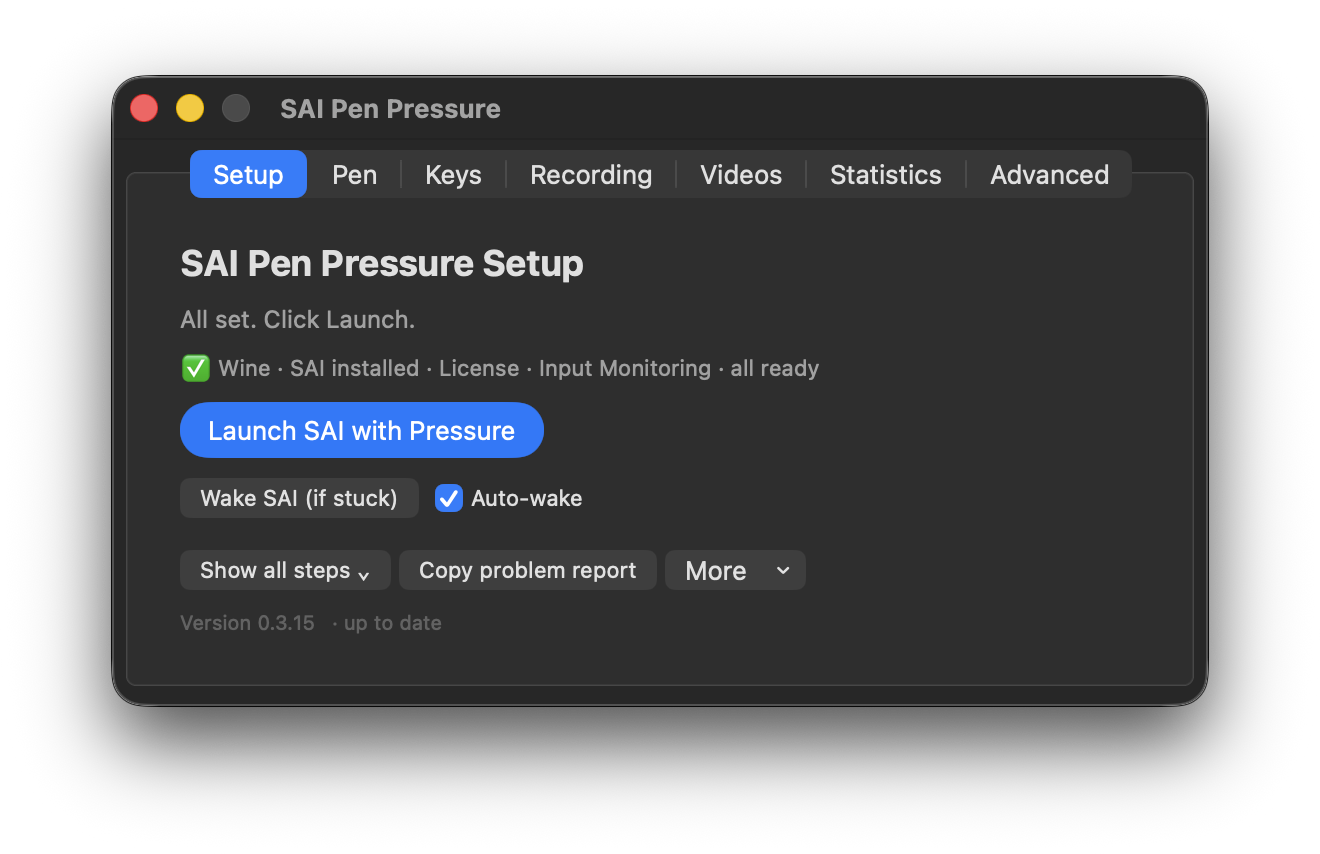
Press Copy problem report on the Setup tab and paste it into an issue. No developer mode needed. It reports the build, your Mac and chip, the macOS and Wine versions, your tablet and how it is connected, what is installed where, whether Wine is loading the pressure bridge or ignoring it, what SAI last received, and the tail of the log. That is almost everything anyone would otherwise have to ask you for.
For pen problems specifically, launch with the DLL’s own log enabled:
osascript -e 'quit app "SAI Pen Pressure"'; sleep 2; \
  WT_DEBUG=1 "/Applications/SAI Pen Pressure.app/Contents/MacOS/SAIPenPressure"
Click Launch SAI, reproduce, then copy ~/SAI2-pressure/drive_c/wtlog.txt — it is
overwritten on each launch. It shows exactly what SAI received.
Home · Install · Troubleshooting · How it works · Engineering notes · GitHub
Fast curves come out boxy
- Connect the tablet by USB for smooth fast strokes. A Wacom over Bluetooth reports at only ~130 Hz, versus ~200 Hz over USB. At that lower rate, quickly-drawn curves come out boxy (too few points to trace the curve) — the bridge draws every point it’s given, so the limit is the tablet’s Bluetooth report rate, not the software. Plug in a data USB cable (not charge-only) for the higher sample rate and noticeably smoother fast lines. Bluetooth is fine for slower, deliberate drawing.
- If you must stay wireless, raising SAI’s own Stabilizer setting smooths the path (at the cost of a little stroke “drag”).